Sitting at home today, I was watching T.V. in between checking my eyelids for light leaks (in other words, I was napping), and caught a comercial for, of all things, a what amounts to a CNC router for the home shop.
It's not too extravagant, but looks like it would do most things a hobbyist would want! At $1800 U.S., it's not cheap, but it's also something that's in the realm of the hobbyist.
I guess it's another case where technology is working it's way down to the masses. Here's a link.
I'm working on putting another Inventor blog up! I'm thinking about one that talks about putting design views into drawings, so stay tuned!

Sunday, February 10, 2008


Friday, January 25, 2008
Why do you backup files?
I guess you can call this a Public Service Announcement.
This actually happened, a disgruntled employee at a firm actually deleted years worth of files!
If this isn't reason for a good backup, I don't know what is!
Here's the article!
This actually happened, a disgruntled employee at a firm actually deleted years worth of files!
If this isn't reason for a good backup, I don't know what is!
Here's the article!
Wednesday, January 23, 2008
It's all in the way you (design) view it
One of the often overlooked parts of Inventor (at least in my opinion), is Design Views, AKA View Representations.
Using Design Views can be a great way to make switching between different views in your assembly.
A Design View remembers three things about your assembly.
1) The camera angle
2) The color scheme
3) Part visibility
The advantage is, it remembers them, so you don't have to!
For the first step, I'm showing an assembly in the same way we'd always look at it.
Notice where I've indicated the design views (these are the defaults in any file).
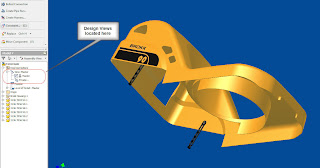
However, we're going to create a couple of other things we're going to turn off the black tabs hanging off the part, change the color of the yellow part to red, and look at it from a different angle.
For our first step, we 'pose the assembly'. In other words, create your desired result, just like you would normally would in any Inventor Assembly
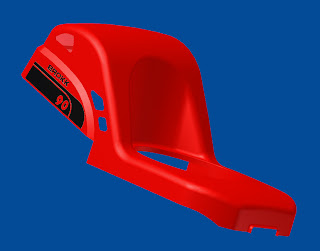
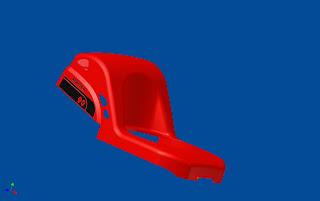
Now the tabs are gone, and the colors been changed. We've also rotated the part.
But how to we get Inventor to 'memorize the view'?
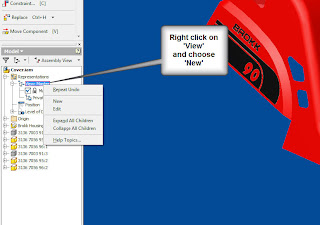
1) Right click on the 'View' in the browser, as shown below, to create a new design view.
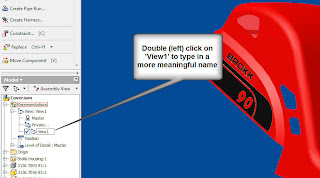
2) Once you do this, a view with a default name will appear. You can double click on the name in the browser, and rename it to something that makes more sense than 'View1'.
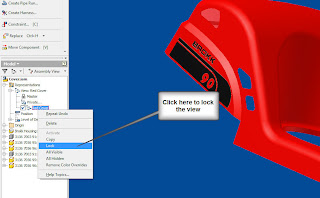
3) Believe it or not, the view's just been created! There is one more step to make sure that your view is ready to go. Right click on the name one more time, and lock the view. This will make sure that any parts that are added to the assembly don't appear in your design view when you don't want them to!
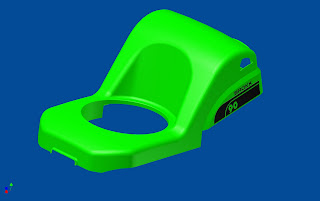
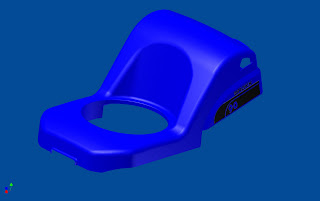
 4) Once this is done, you can create other views by repeating the steps.
Happy Inventing!
Using Design Views can be a great way to make switching between different views in your assembly.
A Design View remembers three things about your assembly.
1) The camera angle
2) The color scheme
3) Part visibility
The advantage is, it remembers them, so you don't have to!
For the first step, I'm showing an assembly in the same way we'd always look at it.
Notice where I've indicated the design views (these are the defaults in any file).

However, we're going to create a couple of other things we're going to turn off the black tabs hanging off the part, change the color of the yellow part to red, and look at it from a different angle.
For our first step, we 'pose the assembly'. In other words, create your desired result, just like you would normally would in any Inventor Assembly

Now the tabs are gone, and the colors been changed. We've also rotated the part.
But how to we get Inventor to 'memorize the view'?
1) Right click on the 'View' in the browser, as shown below, to create a new design view.

2) Once you do this, a view with a default name will appear. You can double click on the name in the browser, and rename it to something that makes more sense than 'View1'.

3) Believe it or not, the view's just been created! There is one more step to make sure that your view is ready to go. Right click on the name one more time, and lock the view. This will make sure that any parts that are added to the assembly don't appear in your design view when you don't want them to!
 4) Once this is done, you can create other views by repeating the steps.


Happy Inventing!
Friday, January 18, 2008
A few quick websites.
Finally! The first post of 2008! I started out the year by taking a snowboarding vacation to Mammoth, and the rest of the time catching up from being at Mammoth! :-)
For starters, I just wanted to post some websites that I find helpful from time to time. You may know a few, and a few may be new.
I'm thinking about some new stuff to put up, so I should have some more material soon!
www.sdotson.com (free tutorials)
www.cbliss.com (free parts downloads)
www.engineersedge.com (A site with engineering formulas and standards)
www.matweb.com (A site that has the properties of several materials)
www.contentwarehouse.part-solutions.com/PARTcommunity/Portal/autodesk (Autodesk content site, powered byPARTsolutions)
I hope these are helpful!
As for me, here I am in Mammoth! Good news! All my extremities came back in working order!



For starters, I just wanted to post some websites that I find helpful from time to time. You may know a few, and a few may be new.
I'm thinking about some new stuff to put up, so I should have some more material soon!
www.sdotson.com (free tutorials)
www.cbliss.com (free parts downloads)
www.engineersedge.com (A site with engineering formulas and standards)
www.matweb.com (A site that has the properties of several materials)
www.contentwarehouse.part-solutions.com/PARTcommunity/Portal/autodesk (Autodesk content site, powered byPARTsolutions)
I hope these are helpful!
As for me, here I am in Mammoth! Good news! All my extremities came back in working order!


Monday, December 24, 2007
Going Out for a Joggle
Merry Xmas everyone! As I'm sitting here making my final preps for the holiday, I thought I'd put in a blog I've been intending to do for a while.
Joggles.
I've been ask a few times how to do them, and they are in there. Here's how you can do them.
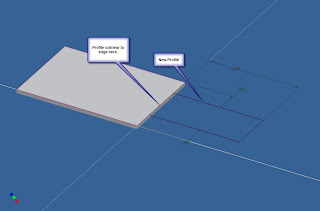
1. I'm starting with a sheet metal face already created, and we'll add a joggle to that. Start by creating a sketch on the face where you want the joggle to be. (Click on the image to see a larger version).
Joggles.
I've been ask a few times how to do them, and they are in there. Here's how you can do them.
1. I'm starting with a sheet metal face already created, and we'll add a joggle to that. Start by creating a sketch on the face where you want the joggle to be. (Click on the image to see a larger version).
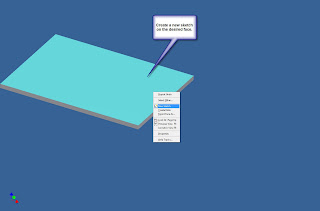
2. Create your sketch, make sure you're colinear to an edge.
3. Create another face. But this time click on the edge button, select edge you want your joggle to start from. Make sure you set it to 45 degrees. You can use your offset to define the orientation of the joggle.
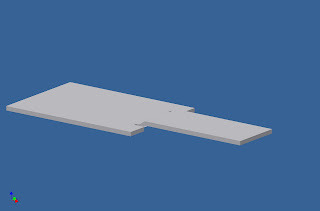
Voila! Happy Holidays!

Thursday, December 20, 2007
Customizing Frame Generator
The elves at Autodesk Labs gave us a gift a little early this year (actually, it's been out for a few weeks), but for all of those who want to add custom profiles to Frame Generator, here's your tool!
Go to www.labs.autodesk.com, and check under the utilities page!
Happy Holidays!
Go to www.labs.autodesk.com, and check under the utilities page!
Happy Holidays!
Monday, December 17, 2007
More Vista Adventures
Well, I just ran into my first 'HUH?' feature in Windows Vista.
I was opening an Inventor assembly file, and got a 'No Error Message Available' message and the Inventor.
Now, I did think that maybe my files had been corrupted, that could happen. However, when I copied all the files to a Windows XP box, I didn't get the error!
At this point, I'm not sure what's caused the error (in Vista's defense, it may be something totally different).
But keep an eye out. This one could be hiding out there! I'll repost if I find something out on this strange one.
I was opening an Inventor assembly file, and got a 'No Error Message Available' message and the Inventor.
Now, I did think that maybe my files had been corrupted, that could happen. However, when I copied all the files to a Windows XP box, I didn't get the error!
At this point, I'm not sure what's caused the error (in Vista's defense, it may be something totally different).
But keep an eye out. This one could be hiding out there! I'll repost if I find something out on this strange one.
Wednesday, December 12, 2007
Living on the Edge! (Windows Vista)
Once again, I'm afraid that I haven't been good about blogging recently.
But my evenings have been filled with much frustration and blue language as I've been setting up my new laptop..... Which uses Windows Vista (Insert 'Psycho' theme here).
That's right! Instead of playing it safe in the comfy world of XP, I decided to go for broke and get the new OS! That's right fellow geeks! You can't stop me! I'm a man on the edge!
So far, it's been a bit of a challenge. My Inventor went in pretty easily, but my Autodesk Data Management Server install was quite a struggle. I had some problems with Port 80, which for some reason, wouldn't pass the prechecks.
I solved them by unplugging my network cable. Why that worked, I don't know.
But here's my honest assessment, after about 12 hours of 'real' use.
I like the look and feel. The 'cool' factor is definitely high, and I'm slowly getting used to the different layout of the OS.
Some of the networking is still driving me bonkers. I haven't figured out how to get it to talk to my XP boxes yet. I'm not sure if this is user error, or something in the OS, but for the moment, I've moved everything from one laptop to another using 'sneaker-net' (aka portable hard drive).
With respect to running Inventor...
You're only going to get 2008. I have my old reliable XP desktop for R11 and previous.
And don't forget! You have to install SP1 for R2008 for Inventor to work properly!
Aside from that, Inventor seems to be moving along without any issues that I've noticed, but I'll be keeping track!
In summary, if I were on a true production (making drawings all day) box, I'd probably wait a little longer before switching to Vista. But, since I'm pretty much pushing the envelope, I figured I'd go ahead and try Vista out.
Wish me luck! Something tells me that things are going to get a little more adventurous.
But my evenings have been filled with much frustration and blue language as I've been setting up my new laptop..... Which uses Windows Vista (Insert 'Psycho' theme here).
That's right! Instead of playing it safe in the comfy world of XP, I decided to go for broke and get the new OS! That's right fellow geeks! You can't stop me! I'm a man on the edge!
So far, it's been a bit of a challenge. My Inventor went in pretty easily, but my Autodesk Data Management Server install was quite a struggle. I had some problems with Port 80, which for some reason, wouldn't pass the prechecks.
I solved them by unplugging my network cable. Why that worked, I don't know.
But here's my honest assessment, after about 12 hours of 'real' use.
I like the look and feel. The 'cool' factor is definitely high, and I'm slowly getting used to the different layout of the OS.
Some of the networking is still driving me bonkers. I haven't figured out how to get it to talk to my XP boxes yet. I'm not sure if this is user error, or something in the OS, but for the moment, I've moved everything from one laptop to another using 'sneaker-net' (aka portable hard drive).
With respect to running Inventor...
You're only going to get 2008. I have my old reliable XP desktop for R11 and previous.
And don't forget! You have to install SP1 for R2008 for Inventor to work properly!
Aside from that, Inventor seems to be moving along without any issues that I've noticed, but I'll be keeping track!
In summary, if I were on a true production (making drawings all day) box, I'd probably wait a little longer before switching to Vista. But, since I'm pretty much pushing the envelope, I figured I'd go ahead and try Vista out.
Wish me luck! Something tells me that things are going to get a little more adventurous.
Wednesday, November 21, 2007
Time for a break.
No Inventor post today, I'm afraid. I do have something in mind, I just haven't had a chance to post it yet.
But I did want to wish the world a Happy Thanksgiving!
Next stop for me! Las Vegas, Nevada, and Autodesk University!
But I did want to wish the world a Happy Thanksgiving!
Next stop for me! Las Vegas, Nevada, and Autodesk University!

Happy Thanksgiving Animations provided by MySpaceGraphicsandAnimations.net
Saturday, November 17, 2007
Inventor Sheet Metal Book
For those of you who attended the webinar I posted (Thank you again, by the way!), I promised to post up the sheet metal book with the ISBN number one of the attendees was kind enough to share (thank you, I'm sorry, but I don't remember who it was!).
Here's a link to the book on Amazon.com here.
It doesn't look like there's been an update, but the basics are the same, and I've always personally, like the material that Travis Jones and Neil Munro have created (I've been fortunate enough to watch them both present at different times).
I hope everyone finds this helpful!
Here's a link to the book on Amazon.com here.
It doesn't look like there's been an update, but the basics are the same, and I've always personally, like the material that Travis Jones and Neil Munro have created (I've been fortunate enough to watch them both present at different times).
I hope everyone finds this helpful!
Tuesday, November 13, 2007
Opening for Import?
Here's a little something that I sometimes find myself getting tripped up by.
Since Inventor R2008 can open a dwg without importing it, how do I tell Inventor when to import, and when to open?
It's actually pretty straight forward. When you choose your AutoCAD dwg to open, there will be an 'Options' dialog box at the bottom of your screen.
Most of the time, these are the options file I ignore, knowing full well I do so at my own peril. I guess you can say that for a computer geek, I live on the edge. (I've been known to go crazy and cut the tags of my mattresses too).
In any case, click on that options button, and you'll be able to choose between opening the dwg, and importing the dwg.
Happy almost Thanksgiving!
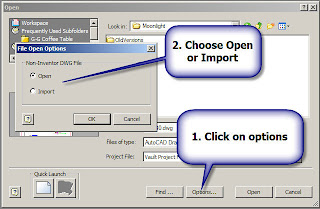
Since Inventor R2008 can open a dwg without importing it, how do I tell Inventor when to import, and when to open?
It's actually pretty straight forward. When you choose your AutoCAD dwg to open, there will be an 'Options' dialog box at the bottom of your screen.
Most of the time, these are the options file I ignore, knowing full well I do so at my own peril. I guess you can say that for a computer geek, I live on the edge. (I've been known to go crazy and cut the tags of my mattresses too).
In any case, click on that options button, and you'll be able to choose between opening the dwg, and importing the dwg.
Happy almost Thanksgiving!

Wednesday, October 31, 2007
Take the Short Cut!
On this Halloween, I thought I'd toss up a quick Projects tip; Frequently Used Subfolders.
Let's say you're working with files that are several levels deep in a project, and you're just getting tired of clicking through all this folders to finally get to your files.
The answer for this could be frequently used subfolders (I'm going to call this FUS from this point forward. I'm getting tired of typing the whole name).
In effect, the FUS is just a shortcut. You can create it for a certain folder, and go straight to that folder, no matter where it is in the project.
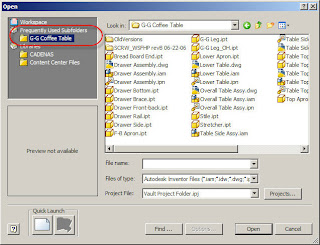
In this case, I want to create a shortcut to go to my G&G Coffee Table Folder, which is two steps below the default workspace.

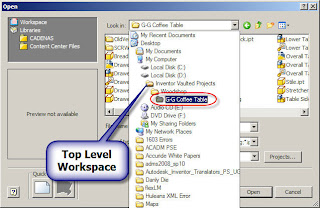
In order to create a FUS, you have to edit your projects via the Project Editor (go to Files>Projects). Don't forget that you need to close all Inventor files to do this.
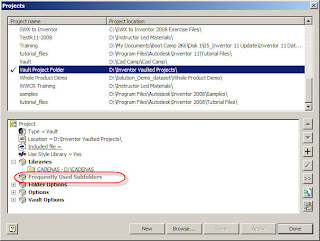

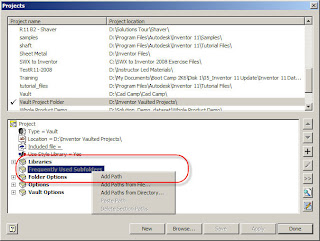
The next step is to right click on the 'Frequently Used Subfolders' header, and choose one of the options (usually add path).
Once this is done, you can click 'OK' and return to the Projects screen. Rename the shortcut title (so you can find it later!), and save the project.
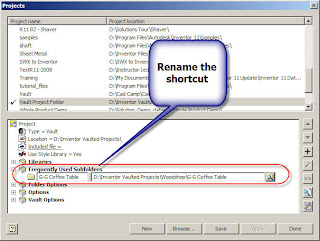

Once you've saved the project, you can close everything down. Now when you go to open and save your files, the shortcut will appear and you can save the hassle of browsing!

By the way....
Happy Halloween!

Let's say you're working with files that are several levels deep in a project, and you're just getting tired of clicking through all this folders to finally get to your files.
The answer for this could be frequently used subfolders (I'm going to call this FUS from this point forward. I'm getting tired of typing the whole name).
In effect, the FUS is just a shortcut. You can create it for a certain folder, and go straight to that folder, no matter where it is in the project.
In this case, I want to create a shortcut to go to my G&G Coffee Table Folder, which is two steps below the default workspace.


In order to create a FUS, you have to edit your projects via the Project Editor (go to Files>Projects). Don't forget that you need to close all Inventor files to do this.


The next step is to right click on the 'Frequently Used Subfolders' header, and choose one of the options (usually add path).

Once this is done, you can click 'OK' and return to the Projects screen. Rename the shortcut title (so you can find it later!), and save the project.


Once you've saved the project, you can close everything down. Now when you go to open and save your files, the shortcut will appear and you can save the hassle of browsing!


By the way....
Happy Halloween!

Sunday, October 21, 2007
Autodesk University
It's on its way now. Only a little time to Autodesk University. I put up this counter to keep track.
I hope to see a few friends there!
MySpace Countdown
I hope to see a few friends there!
MySpace Countdown
Subscribe to:
Posts (Atom)